Switch Between Classic Mode and Web Mode for an Option
Objective
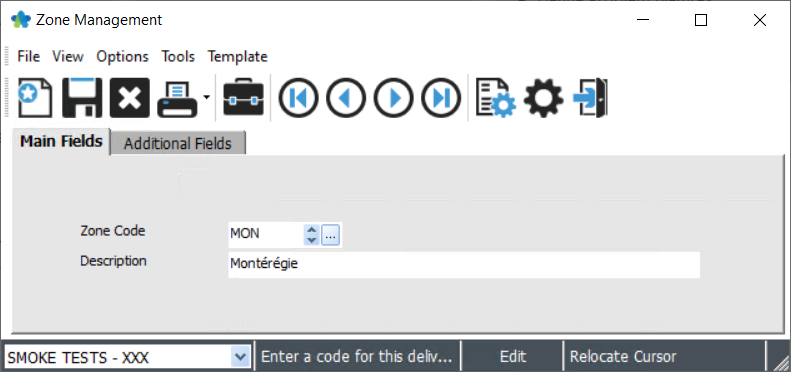
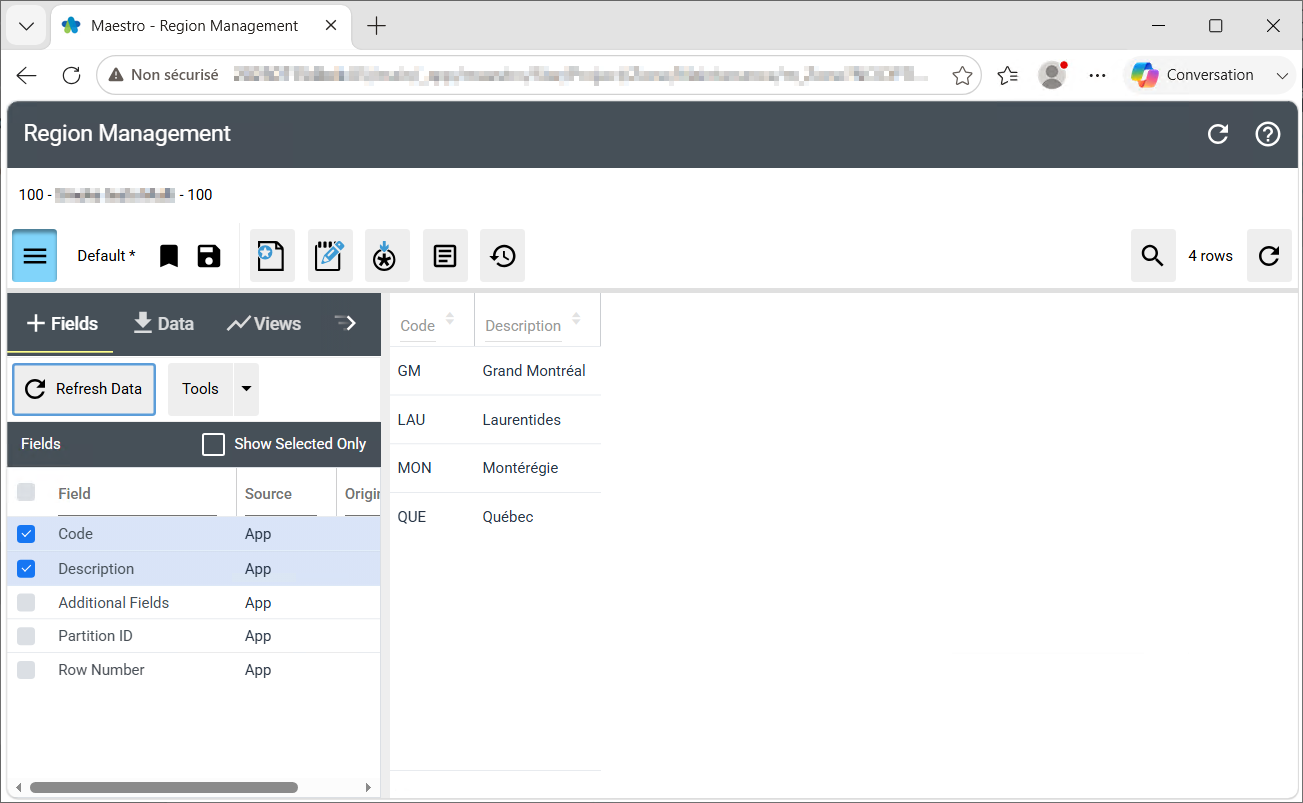
|
|
|
STEPS
Switching Between Modes
|
|
|
List of Topics Available in Web Mode, by Module
Purchasing
- Characteristic Management (Characteristic Management)
- Item Kind Management (Item Kind Management)
- Manufacturer Management (Manufacturer Management)
- Unit of Measurement Management
Service Management
- Equipment Brand Management
- Item Kind Management (Item Kind Management)
- Lead Source Management (Lead Source Management)
- Non-Billing Reason Management (Non-Billing Reason Management)
- Skill Management (Skill Management)
- Task Management (Task Management)
- Visit Type Management (Visit Type Management)
- Region Management (Region Management)
Tickets
- Distance Interval Management (Distance Interval Management)
- Surcharge Type Management (Surcharge Type Management)
Accounting
- Account Group Management (Account Group Management)
Equipment
- Location Management (Location Management)
- Non-Billing Reason Management (Non-Billing Reason Management)
- Task Management (Task Management)
Invoicing
- Customer Type Management (Customer Type Management)
- Lead Source Management (Lead Source Management)
- Non-Billing Reason Management (Non-Billing Reason Management)
Time Management
- Annex Management (Annex Management)
- Ethnic Origin Management (Ethnic Origin Management)
- Grouping Management (Grouping Management)
- Skill Management (Skill Management)
Projects
- Place Management
- Priority Management (Priority Management)
- Priority Management (Priority Management)
- Progression Status Management (Progression Status Management)
- Project Category Management (Project Category Management)
- Recommendation Type Management (Recommendation Type Management)
- Region Management (Define Zones)